
Apple TV IPTV Setup Guide (All Models)
Apple TV is one of the most premium devices for watching IPTV. With its smooth tvOS interface, fast performance, and high-quality video output, it delivers a clean and stable streaming experience—especially for HD and 4K content.
Even though Apple has stricter app policies compared to Android devices, there are still excellent IPTV apps available that work perfectly on Apple TV.
In this guide, you’ll learn how to set up IPTV step by step on any supported Apple TV model using simple and reliable methods.
Supported Apple TV Models
This setup works on all Apple TV devices that support tvOS:
Apple TV 4K (latest and previous versions)
Apple TV HD (4th generation)
Older models (3rd generation and below) are not supported due to limited app compatibility.
What You Need Before Starting IPTV Apple TV Setup
Before beginning the IPTV Apple TV setup process, make sure you have:
- Apple TV Device – Apple TV HD (4th gen) or Apple TV 4K (any generation)
- Active IPTV Subscription – M3U playlist URL or Xtream Codes credentials
- Internet Connection – Minimum 10 Mbps for HD, 25 Mbps for 4K
- Apple ID – Required to download apps from App Store
- Siri Remote – Included with Apple TV (or use iPhone Remote app)
- HDMI Cable – Connect Apple TV to your television
- 10-15 Minutes – Setup time needed
💡 Pro Tip: Apple TV 4K works best with ethernet connection for IPTV. While WiFi 6 on newer models is excellent, wired connection eliminates 95% of buffering issues and gives you the most stable 4K streaming experience.
Which Apple TV Model is Best for IPTV in 2026?
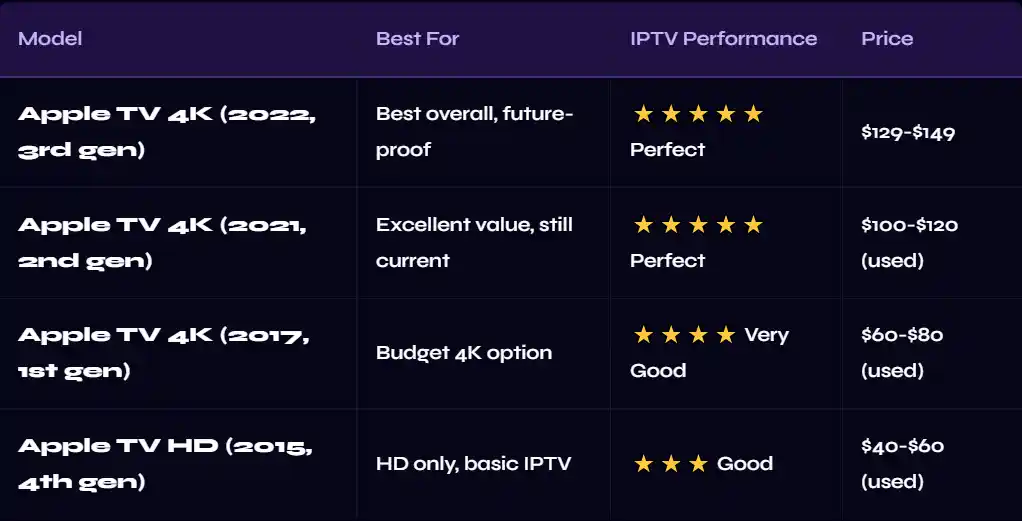
💡 Our Recommendation: Apple TV 4K (2022, 3rd gen) is the best investment. The A15 Bionic chip handles any IPTV playlist smoothly, WiFi 6 gives excellent wireless performance, HDR10+ support ensures best picture quality, and it includes ethernet on the base $129 model. Will easily last 5+ years with Apple’s long software support.
Method 1: GSE Smart IPTV (Recommended)
GSE Smart IPTV is the most popular and feature-rich IPTV app for Apple TV. It’s completely free, supports both M3U and Xtream Codes, and offers excellent performance.
Step 1: Install GSE Smart IPTV from App Store
1. From Apple TV home screen, open App Store
2. Click Search icon at top
3. Type: GSE Smart IPTV using the on-screen keyboard
4. Select GSE Smart IPTV from results (orange logo with play button)
5. Click Get → Enter Apple ID password or use Touch ID if prompted
6. Wait for installation (30-60 seconds)
7. Click Open to launch GSE Smart IPTV
Step 2: Add Your IPTV Playlist
For M3U Playlist URL:
1. In GSE Smart IPTV app, click the + icon (top right)
2. Select Remote Playlist
3. Enter a name for your playlist (e.g., “My IPTV”)
4. Paste your M3U playlist URL in the URL field
5. Click Save
6. Channels will load (20-60 seconds depending on playlist size)
7. Select any channel and click to start watching!
For Xtream Codes API:
1. Click + icon → Select Xtream Codes
2. Enter your credentials:
• Username (from your IPTV provider)
• Password (from your IPTV provider)
• Server URL (must start with http:// or https://)
3. Click Add → Channels will load → Start streaming!
💡GSE Smart IPTV Features: EPG support, favorites, parental controls, Chromecast, cloud sync across devices, recording (Premium), catch-up TV, and multiple playlist support. The app is free with optional Premium upgrade for advanced features.
Method 2: iPlayTV (Alternative)
iPlayTV is another excellent IPTV app for Apple TV with a clean interface and solid performance.
Installing iPlayTV:
1. Open App Store on Apple TV
2. Search for: iPlayT
3. Install the app (it’s free)
4. Open iPlayTV
5. Click Settings → Playlists → Add Playlist
6. Choose URL and paste your M3U link, or select Xtream Codes and enter credentials
7. Save → Channels load → Start watching!
Troubleshooting Common IPTV Apple TV Issues
Problem 1: App Not Available in App Store
Solutions:
- Change Apple ID region to US, UK, or Canada (may have better app availability)
- Use GSE Smart IPTV instead (available in most regions)
- Try iPlayTV as alternative
- Note: Cannot sideload apps on Apple TV like you can on Android – must use App Store only
Problem 2: IPTV Buffering on Apple TV
Solutions:
- Switch from WiFi to ethernet (Apple TV 4K 2022 has ethernet on base model)
- Move WiFi router closer or upgrade to WiFi 6 router
- Close background apps: Double-press TV button → Swipe up on apps to close
- Change video player in app settings (try different player options)
- Lower video quality to 1080p instead of 4K in app settings
- Restart Apple TV: Settings → System → Restart
- Check internet speed at fast.com (need 25+ Mbps for 4K)
Problem 3: Playlist Won’t Load
Solutions:
- Verify M3U URL is correct (test in VLC player on computer first)
- Make sure URL starts with http:// or https://
- Check if playlist URL expired – contact provider for fresh URL
- Try different app (GSE vs iPlayTV) – sometimes provider-specific compatibility
- Delete and re-add playlist in app settings
Problem 4: No EPG (TV Guide) Showing
Solutions:
- Verify your IPTV provider includes EPG – not all do
- In GSE: Settings → EPG → Update Now
- Wait 30-60 minutes after first setup for EPG to download
- Check timezone settings match your location
- Some providers need separate EPG URL – ask provider
Problem 5: Channels Playing But Black Screen
Solutions:
- Force close app and reopen: Double-press TV button → Swipe up on app → Relaunch
- Change player in app settings to different option
- Update app to latest version from App Store
- Restart Apple TV completely
- That specific channel may be down – try different channel to test
Problem 6: Audio/Video Out of Sync
Solutions:
- Change audio settings: Settings → Video and Audio → Match Content → OFF
- Disable Dolby Atmos: Settings → Video and Audio → Dolby Atmos → OFF
- Try different video player in IPTV app settings
- Check HDMI cable connection – try different HDMI cable if available
- Update tvOS: Settings → System → Software Updates
Best IPTV Apps for Apple TV 2026
1. GSE Smart IPTV ⭐ #1 CHOICE
Best For: Most Apple TV users
Features: M3U & Xtream Codes, EPG, favorites, parental controls, Chromecast, cloud sync, catch-up TV
Cost: Free (Premium available for recording/advanced features)
Rating: ⭐⭐⭐⭐⭐
Availability: Apple TV App Store (most regions)
2. iPlayTV
Best For: Clean interface lovers
Features: M3U & Xtream Codes, EPG, simple setup, recording
Cost: Free
Rating: ⭐⭐⭐⭐
Availability: Apple TV App Store
3. Smarters Player Lite
Best For: Multi-platform users (if available)
Features: Xtream Codes, catch-up TV, parental controls, EPG
Cost: Free
Rating: ⭐⭐⭐⭐⭐
Availability: Limited regions on Apple TV App Store
4. OttPlayer
Best For: Alternative option
Features: M3U playlists, EPG support
Cost: Free
Rating: ⭐⭐⭐
Availability: Apple TV App Store (limited regions)
Frequently Asked Questions
Which Apple TV is best for IPTV?
Can I use TiviMate on Apple TV?
Is GSE Smart IPTV free on Apple TV?
Can I sideload IPTV apps on Apple TV?
Why is IPTV buffering on my Apple TV?
Does Apple TV HD (4th gen) work well for IPTV?
What's better for IPTV - Apple TV or Android box?
Can I AirPlay IPTV from iPhone to Apple TV?
Related Setup Guides